Plans & Billing
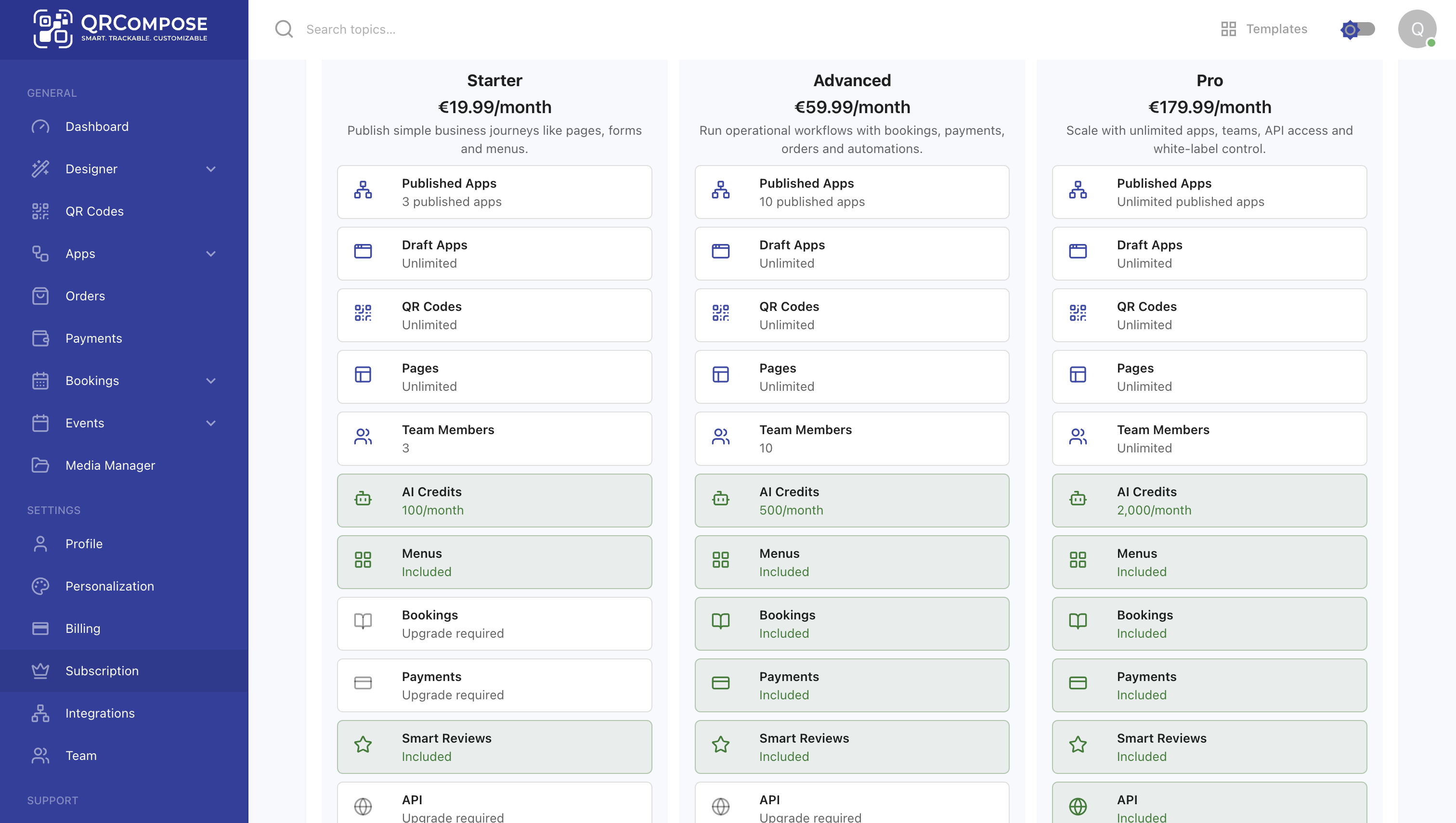
QRCompose uses feature-based subscription access control. Your plan determines which page types you can publish, how many apps can be live at once, team size, and AI credit allowances.
Subscription tiers
| Plan | Published apps | Team | AI credits | Menus | Bookings | Payments | Smart Reviews | White label |
|---|---|---|---|---|---|---|---|---|
| Free | 1 | 1 | Not included | Locked | Locked | Locked | Locked | Locked |
| Starter | 3 | 3 | 100/month | Included | Locked | Locked | Included | Locked |
| Advanced | 10 | 10 | 500/month | Included | Included | Included | Included | Locked |
| Pro | Unlimited | Unlimited | 2,000/month | Included | Included | Included | Included | Included |
| Enterprise | Custom | Unlimited | Custom | Included | Included | Included | Included | Included |
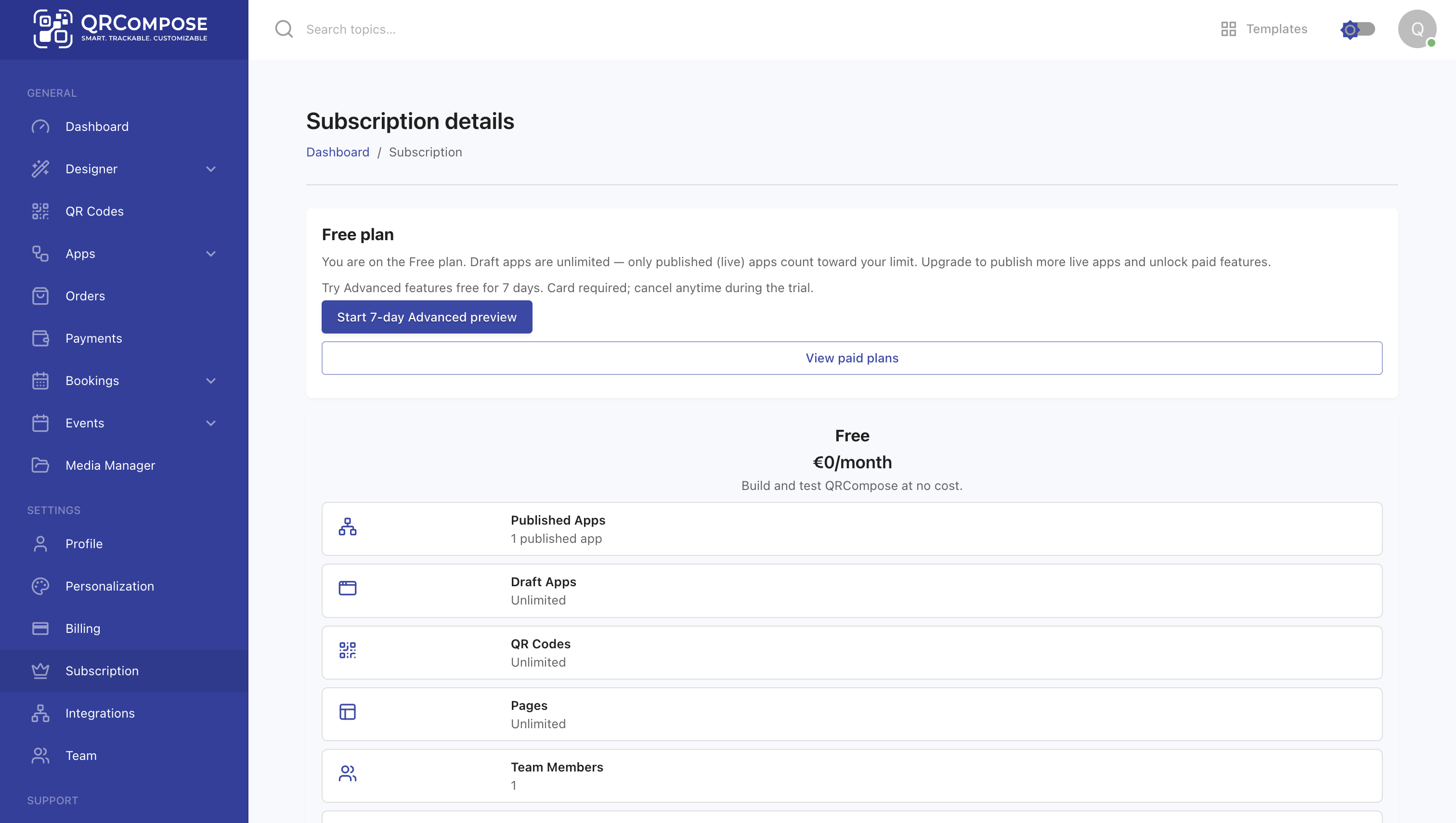
On the Free plan, Pages and Forms are included. You can create unlimited drafts; publish limits apply to live apps.
Separate from event licensing
SaaS subscription plans control your tenant workspace. Event licensing is a separate purchase per event — see Event Licensing.
Permanent Free tier
New accounts start on a permanent Free plan. There is no automatic 14-day trial expiry and no time pressure to upgrade.
When you register (email or Google sign-in), your account is created with:
- Plan: Free
- Unlimited drafts for pages, QR codes, and apps
- One published app at a time
- Pages and forms can be published on Free
Manage your plan from Settings → Subscription (/settings/subscription).
Preview trial
Free accounts can start a 7-day Advanced preview from the subscription settings page. This replaces the old automatic trial model.
- Go to Settings → Subscription
- Click Start 7-day Advanced preview
- Enter a payment method (card required)
- Advanced-tier capabilities unlock immediately
During the preview trial you can publish menus, bookings, payments, and smart reviews. If you do not convert to a paid plan, your account falls back to Free and premium assets are selectively paused (not deleted).
Demo accounts
Demo accounts created via the public designer cannot start a preview trial.
Publishing gates by capability
Publishing is gated by capability, not just plan name. When you try to publish a locked page type, QRCompose shows an upgrade prompt and saves your work as a draft.
| Page type | Minimum plan |
|---|---|
| Pages, Forms, Link Tree, Website, Gallery, etc. | Free |
| Menus, Smart Reviews | Starter |
| Bookings, Payments | Advanced |
| API access, White label | Pro |
After upgrading, you can return to the designer and publish saved drafts without recreating content.
Downgrades and payment recovery
When you downgrade or a payment fails, QRCompose uses entitlement reconciliation:
- Only assets that require capabilities you no longer have are paused
- Pause records are created so assets can be restored on upgrade or payment recovery
- Manually disabled assets are never auto-restored
Payment recovery after a failed charge restores exactly the assets that were paused due to that failure.
Organisation billing modes
Organisation tenants can operate under two billing policies:
| Mode | Behaviour |
|---|---|
| Self-service | Tenant admins manage Stripe billing, upgrades, and payment methods via Settings → Billing |
| Platform-managed | The organisation sponsors the tenant; self-service Stripe billing is unavailable |
Org-managed tenants inherit the organisation's subscription. Invited team members join the existing tenant plan — no separate subscription is created.
See Organisation Overview for tenant and invitation management.
Upgrading and managing billing
| Task | Path |
|---|---|
| View current plan | Settings → Subscription |
| Compare plans | Settings → Subscription → Plan options |
| Upgrade | Settings → Subscription → Upgrade |
| Manage payment methods | Settings → Billing (paid self-service tenants) |
Related
- Publish & Draft — how publish limits and gates work in practice
- Event Licensing — per-event commercial model
- Organisation Overview — platform-managed billing