Galleries
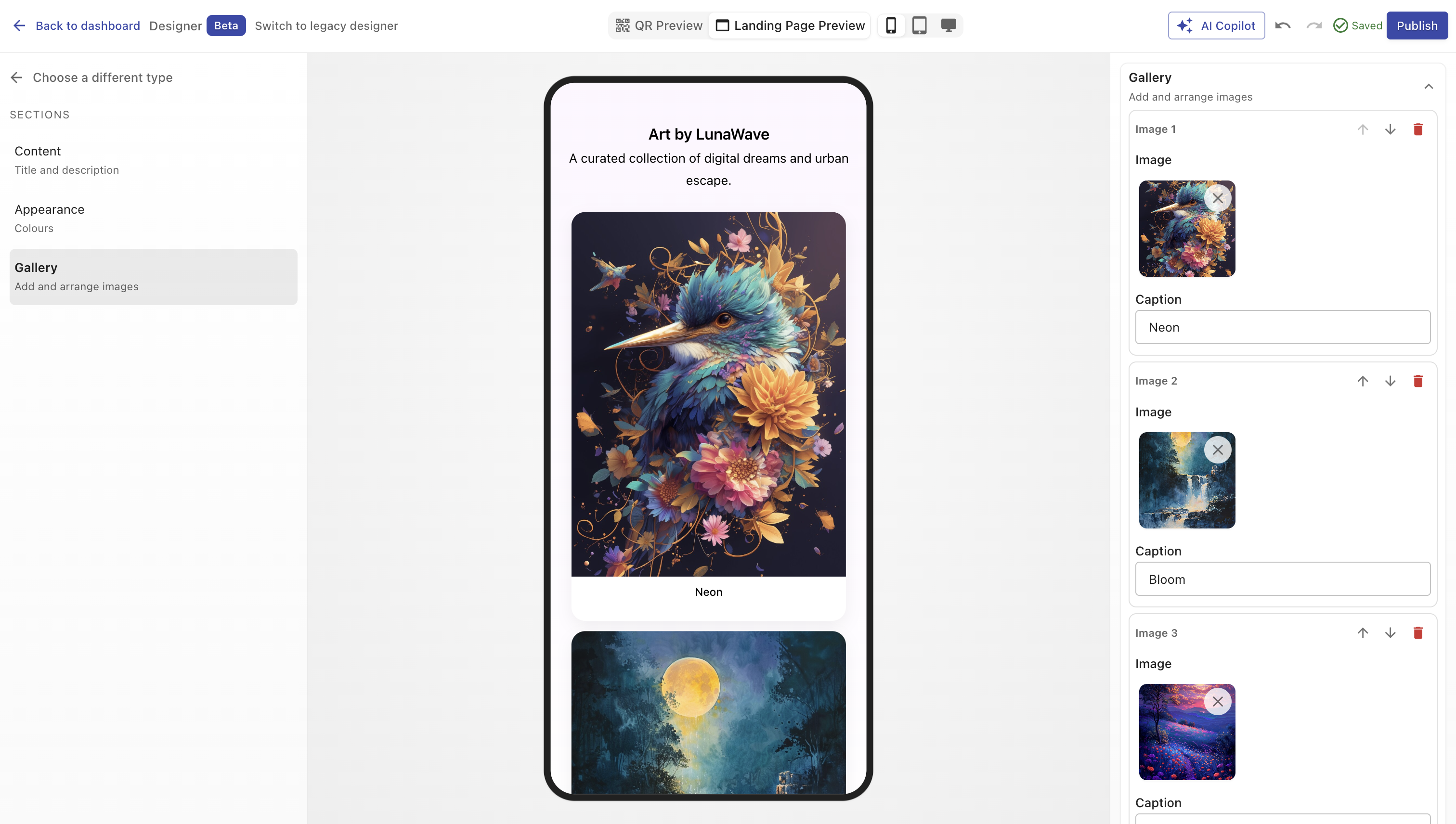
The Galleries component lets you create visually rich, swipeable image showcases directly inside QRCompose.
You can upload photos, add captions, customize colors, and include a call-to-action button to redirect visitors - ideal for portfolios, restaurants, real estate listings, or events.
Overview
Each gallery page displays your selected images in a clean, responsive layout that adapts beautifully to any screen.
You can include captions and custom background colors per image, and optionally display a button to guide visitors to an external link such as your portfolio, website, or booking page.
Creating a Gallery Page
You can create a gallery in two ways:
- During QR Code creation - select Page → Gallery in Step 2.
- From the Page Library - select type Gallery in Designer V3, upload your images, and publish.
Once created, the gallery can be linked to a QR code or combined with other components inside an App (e.g. Menu → Gallery → Review).
Configuration Sections
Main Properties
Define the general details of your gallery.
| Field | Description |
|---|---|
| Name | Title of the gallery shown at the top of the page. (Required) |
| Description | Short summary or introduction that appears beneath the title. |
Design
Customize the color theme for the entire gallery.
| Option | Description |
|---|---|
| Color Presets | Quickly apply preset color combinations for background and text. |
| Background Color | Choose a solid or gradient color for the gallery background. |
| Text Color | Customize the color for all text elements (title, captions, etc.). |
You can select from built-in presets or manually pick colors using the color pickers.
Gradients are supported for the background color.
List of Images
Add and configure each image you want to display in the gallery.
You can add as many images as your plan allows, reorder them, and delete any when needed.
| Field | Description |
|---|---|
| Label | Optional caption or title for the image. |
| URL | Optional link that the image will open when clicked (e.g., product page, booking link). |
| Media Upload | Upload a photo from your device. Each image can be unique or reused. |
| Background Color | (Optional) Apply a background or gradient behind the image. |
| Text Color | (Optional) Adjust text contrast for the image caption. |
Reordering & Deletion
- Use the ↑ and ↓ buttons to move images up or down.
- Use the 🗑️ Delete icon to remove an image.
- Click “Add another item” to append a new image card.
Call-to-Action Button
Add a clickable button at the bottom of the gallery.
| Field | Description |
|---|---|
| Show Button | Toggle to show or hide the CTA button. |
| Label | Button text (e.g., “View Full Gallery”, “Visit Website”). |
| Redirect Link | Destination URL for the button (opens in a new tab). |
WARNING
If this gallery page is part of an App, external CTA links will end the app.
For smoother user journeys, use internal steps or QRCompose-hosted links.
Best Practices
- Use consistent aspect ratios for all images (e.g., square or 4:3).
- Keep image files under 2MB for faster loading.
- Add meaningful captions to improve engagement.
- Maintain visual coherence - consistent lighting and style.
- Use the CTA button strategically (e.g., link to portfolio, booking form, or menu).
Analytics
Once published, your gallery automatically tracks:
- Total page views and unique visitors
- Individual image views
- CTA button click rate
- Device type and geographic data
These insights can be viewed in your Analytics Dashboard.
Example Use Cases
| Industry | Example |
|---|---|
| Restaurants | Display dishes, ambiance, and drinks. |
| Artists & Photographers | Showcase creative portfolios or exhibits. |
| Real Estate | Virtual tours and property images. |
| Retail | Product or collection visuals. |
| Events | Share photo recaps or behind-the-scenes shots. |
Summary
The Gallery component transforms a QR scan into a captivating visual experience.
Upload images, personalize your design, and include a button to guide your audience - all within minutes.