Submissions
Submissions in QRCompose represent all the customer interactions and data captured through your QR pages.
Whether it's a contact form, restaurant order, event booking, or customer review - every response is stored securely, organized intelligently, and accessible from your dashboard.
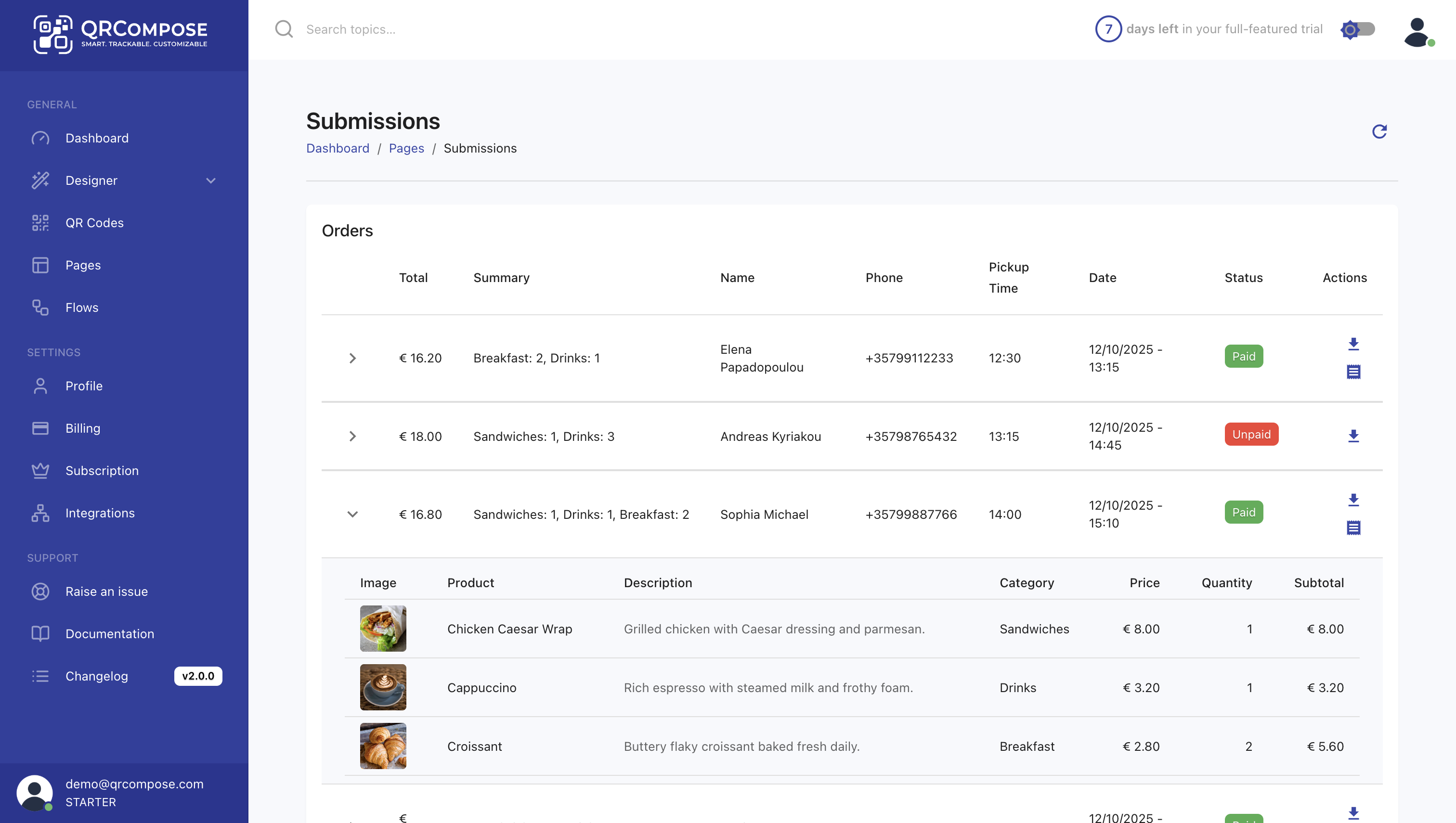
Overview
Submissions are generated whenever visitors interact with specific QRCompose components.
Unlike page views or scans (tracked by Analytics), submissions represent completed actions that capture structured data.
Components That Generate Submissions
| Component | Submission Type | Data Captured |
|---|---|---|
| Forms | Form submission | All field values (text, email, date, etc.) |
| Menus (with orders) | Order submission | Items ordered, quantities, prices, metadata labels |
| Forms (with bookings) | Booking submission | Time slot, date, participants, pricing |
| Reviews | Review submission | Sentiment (positive/neutral/negative), optional comment |
| Payments | Transaction record | Amount, currency, status, Stripe ID |
Each submission is timestamped, linked to the originating QR code or page, and enriched with contextual metadata (device, location, etc.).
Accessing Submissions
Submissions are accessible from your QRCompose Dashboard under the Submissions section.
List View
The submissions list displays:
- Date & Time – when the submission was received.
- Page / QR Code – which page or QR generated the submission.
- Component Type – Form, Menu, Review, Booking, etc.
- Preview – a quick summary of key fields or values.
- Status – (if applicable) Pending, Completed, Paid, etc.
Detail View
Click any submission to see:
- Full field-by-field data
- Timestamp and session metadata
- Device type, browser, and IP address
- Country and approximate location
- Linked analytics (how many views before conversion)
- Export options (PDF, CSV, or JSON)
Data Collected
Every submission includes the following metadata automatically:
| Field | Description |
|---|---|
| Submission ID | Unique identifier for the entry. |
| Timestamp | Date and time of submission (UTC). |
| Page ID | The page that captured the submission. |
| QR Code ID | The QR code scanned (if applicable). |
| Session ID | Unique session identifier for the visitor. |
| IP Address | Visitor's IP (hashed or anonymized based on privacy settings). |
| Device Type | Desktop, mobile, or tablet. |
| Browser | User agent or browser name. |
| Country | Detected from IP geolocation. |
| Referrer | Source URL if visitor came from external link. |
Component-Specific Data
Depending on the component type, additional fields are captured:
Forms:
- All field names and values
- Required vs. optional field completion status
Menus:
- Order items with names, quantities, and prices
- Total amount
- Metadata labels (e.g., "Table Number", "Notes")
Bookings:
- Selected date and time slot
- Number of participants
- Booking duration
- Total price (if applicable)
Reviews:
- Sentiment (positive, neutral, negative)
- Optional comment or feedback text
- Follow-up action taken (if configured)
Payments:
- Transaction ID (Stripe)
- Amount and currency
- Payment status (succeeded, pending, failed)
- Payment method
WARNING
Sensitive data (passwords, payment details) should never be collected via Forms unless you're using secure integration methods (e.g., Stripe for payments).
Use Cases
Contact Forms (Lead Capture)
Capture inquiries, customer questions, or sales leads from any QR touchpoint.
Example app:
Business Card → Contact Form → Thank You PageData Captured:
- Name, Email, Phone Number, Message
Restaurant Orders
Collect customer orders directly from table QR codes.
Example app:
Menu (with ordering) → Payment → ReviewData Captured:
- Order items, quantities, prices, table number, special requests
Event Bookings
Let users reserve time slots or event tickets.
Example app:
Event Page → Booking Form → Payment → ConfirmationData Captured:
- Date, time slot, number of participants, contact info, payment status
Customer Reviews
Gather sentiment and feedback after transactions.
Example app:
Payment → Review PageData Captured:
- Sentiment (positive/neutral/negative), optional comment, transaction ID
Best Practices
- Review submissions regularly to identify trends or issues.
- Set up notifications (email or webhook) for high-priority forms.
- Use filters and exports for reporting and integration with CRM tools.
- Enable IP anonymization if operating in privacy-sensitive regions.
- Archive old submissions periodically to keep your dashboard fast.
- Test your forms before publishing to ensure all fields are captured correctly.
Summary
Submissions are the heart of QRCompose's interactive capabilities.
They transform static QR codes into powerful data collection tools - capturing leads, orders, bookings, and feedback with full traceability, security, and export flexibility.