Music
The Music component lets you embed audio directly into your QR pages - perfect for artists, events, sound designers, or businesses who want to share soundtracks, messages, or voice recordings.
You can upload or link a song, customize player behavior, style your page, and even include a call-to-action button.
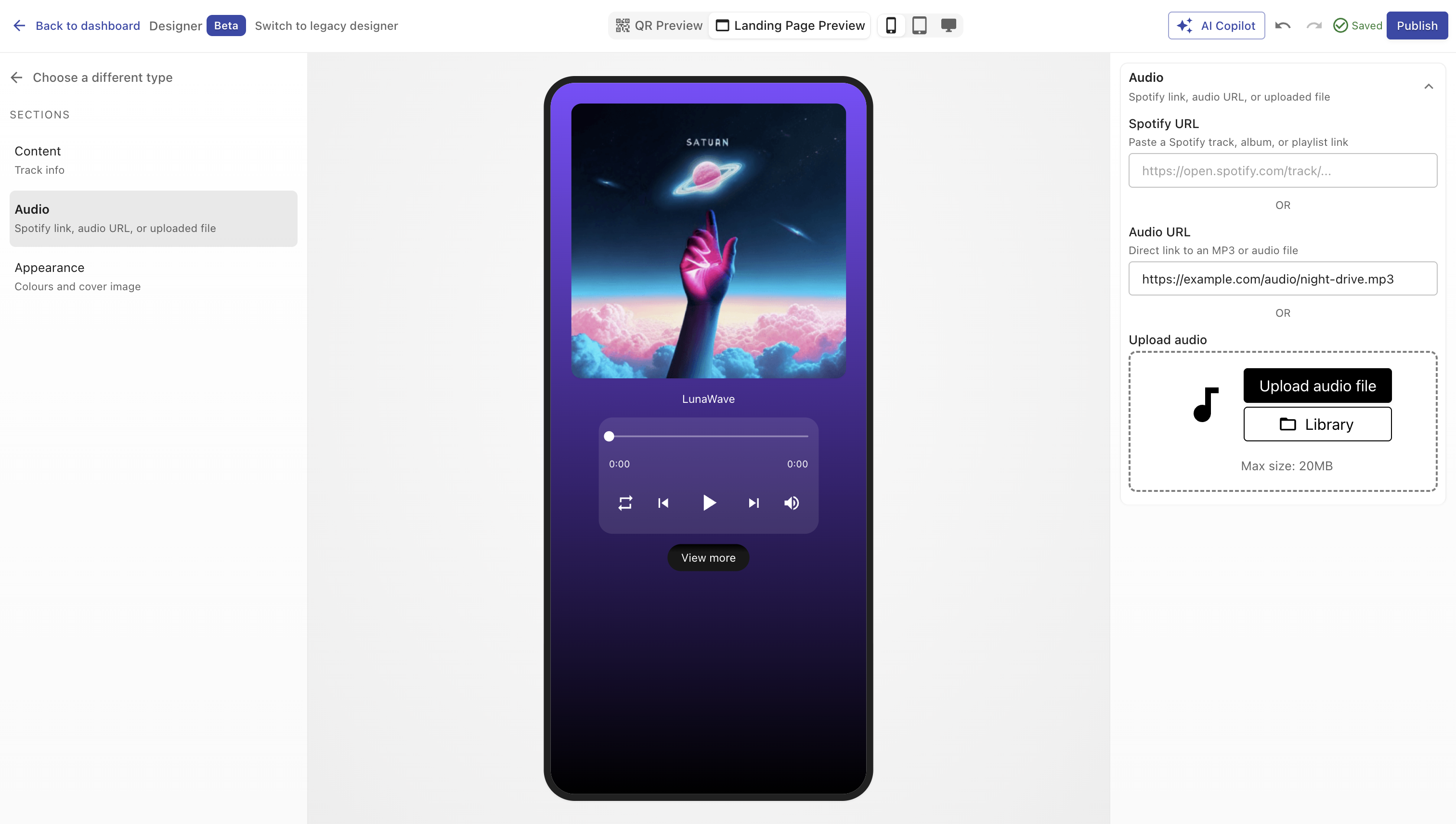
Overview
A Music Page plays an uploaded or externally hosted track with a clean, mobile-friendly player.
You can add cover art, choose colors, enable autoplay or looping, and provide a redirect button (e.g., “Listen on Spotify” or “Visit Artist Page”).
Creating a Music Page
You can create a music page in two ways:
- During QR code creation - choose Page → Music in Step 2.
- From the Page Library - select type Music in Designer V3, upload or link your track, and publish.
Once saved, the music page can be linked to a QR code or used as a step in an App (for example: Landing → Music → Form → Review).
Configuration Sections
Main Properties
Define the song’s title, artist, and audio source.
| Field | Description |
|---|---|
| Song name | Name of the track. (Required) |
| Artist | Artist or creator name. |
| Existing Music File URL | Add a direct URL to a hosted file (e.g., AWS, SoundCloud, Dropbox). |
| Music File Upload | Upload your own MP3, WAV, or M4A file directly to QRCompose. |
TIP
You can either link an existing file or upload one - not both.
Uploaded files are hosted on QRCompose’s secure CDN for fast playback.
Design
Customize your player’s look and feel.
| Option | Description |
|---|---|
| Color Presets | Quickly apply matching color themes. |
| Background Color | Choose a solid or gradient background for the page. |
| Text Color | Customize text color for titles and labels. |
| Cover Image | Upload an album cover, logo, or artwork displayed above the player. |
You can also control player behavior:
| Toggle | Description |
|---|---|
| Autoplay | Start playback automatically when the page loads. |
| Loop | Repeat playback continuously after the track ends. |
Call-to-Action Button
Optionally display a button below the player.
| Field | Description |
|---|---|
| Show Button | Enable or disable the CTA button. |
| Label | Button text (e.g. “Listen on Spotify”). |
| Redirect Link | URL where users will be directed when clicking the button. |
WARNING
If the music page is part of an App and the CTA points to an external website,
the app will end there. Use internal links for seamless multi-step flows.
Analytics
Music pages automatically track:
- Total plays and unique visitors
- Average listen duration
- Play, pause, and replay interactions
- CTA button clicks
- Device and geographic data
Best Practices
- Use high-quality audio (minimum 128 kbps, ideally 320 kbps MP3).
- Keep file sizes under 10 MB for fast streaming.
- Use short, descriptive titles and artist names.
- Add a recognizable cover image (album art, brand logo, etc.).
- Avoid enabling both autoplay and loop unless intentional (to prevent user fatigue).
- Test playback on both iOS and Android before publishing.
Example Use Cases
| Use Case | Description |
|---|---|
| Artists & Musicians | Share new singles, previews, or albums. |
| Events & Festivals | Play event intros or DJ sets. |
| Retail Stores | Add branded background music to displays. |
| Podcasts & Voice Notes | Embed episodes or announcements. |
| Museums & Exhibits | Audio guides activated by QR scans. |
Summary
The Music component makes it simple to turn any QR code into an immersive audio experience.
Upload or link your track, style it to match your brand, and guide listeners with a customizable button - all with instant analytics and effortless publishing.