Event Management
QRCompose's Events platform goes beyond a simple event landing page. From the sidebar, open Events (/events) to create and manage full event experiences with programmes, attendees, check-in, and guest portal access.
Event page vs event management
The Events page component is the public-facing landing page visitors see when they scan a QR code. Event management is the organiser workspace for building, staffing, and running the event.
Creating an event
- Go to Events in the sidebar
- Click to create a new event (or start from a template)
- Configure the event page in the designer — basics, branding, agenda, speakers, sponsors, venue
- Build your programme, add attendees, and purchase an event licence before publishing
Events start in Draft status. Publishing requires an active event licence.
Event manager tabs
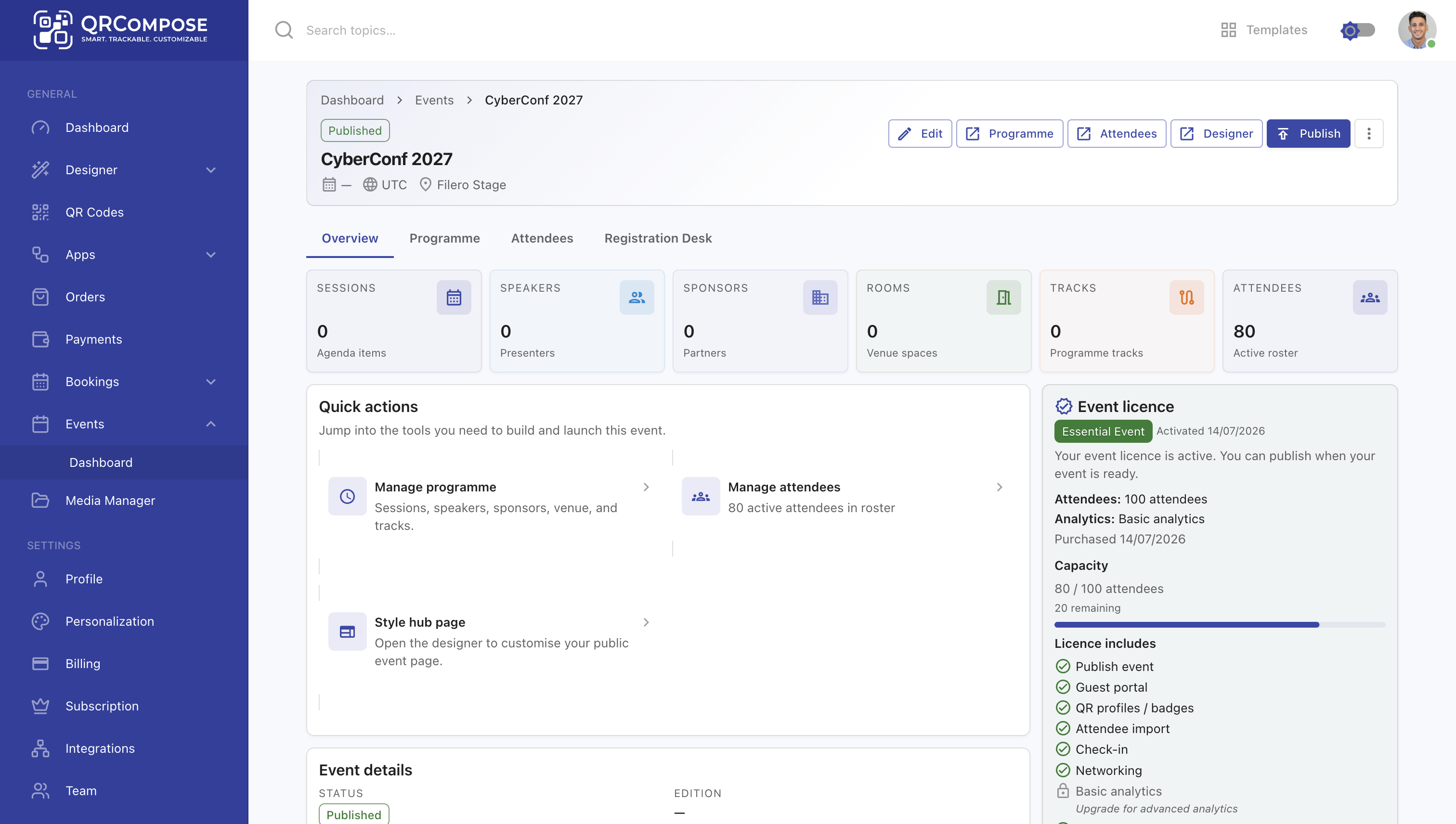
Open an event to access the event manager. Navigation tabs:
| Tab | Path | Purpose |
|---|---|---|
| Overview | /events/:eventId | Event status, licence info, quick actions, publish controls |
| Programme | /events/:eventId/programme | Sessions, speakers, sponsors, venue, tracks |
| Attendees | /events/:eventId/attendees | Import, manage, and notify attendees |
| Registration Desk | /events/:eventId/desk | On-site check-in and badge printing |
Programme
The Programme tab organises your event content:
- Sessions — schedule slots with times, rooms, and descriptions
- Speakers — speaker profiles linked to sessions
- Sponsors — sponsor logos and links
- Venue — rooms and location details
- Tracks — thematic groupings for multi-track events
Programme content appears on the public event page and in the guest portal agenda.
Publishing and status
| Status | Meaning |
|---|---|
| Draft | Event is being configured; not publicly accessible |
| Published | Event is live; attendees can access the guest portal |
| Archived | Event is read-only; historical data preserved |
Publishing is blocked until an active event licence is in place. The overview tab shows licence status and a link to purchase.
Guest portal integration
When attendees are added and the event is published, guests are auto-provisioned for the Guest Portal. Attendees can sign in, view their digital pass, browse the agenda, and network with other attendees.
Related
- Events page component — public event landing page
- Attendees & Registration Desk — attendee management and check-in
- Event Licensing — purchase and capacity tiers
- Guest Portal — attendee-facing experience