Payments
The Payments component in QRCompose lets you accept secure, trackable payments directly from your QR pages.
It’s ideal for donations, product sales, service payments, or event tickets - all linked to your Stripe integration for seamless checkout.
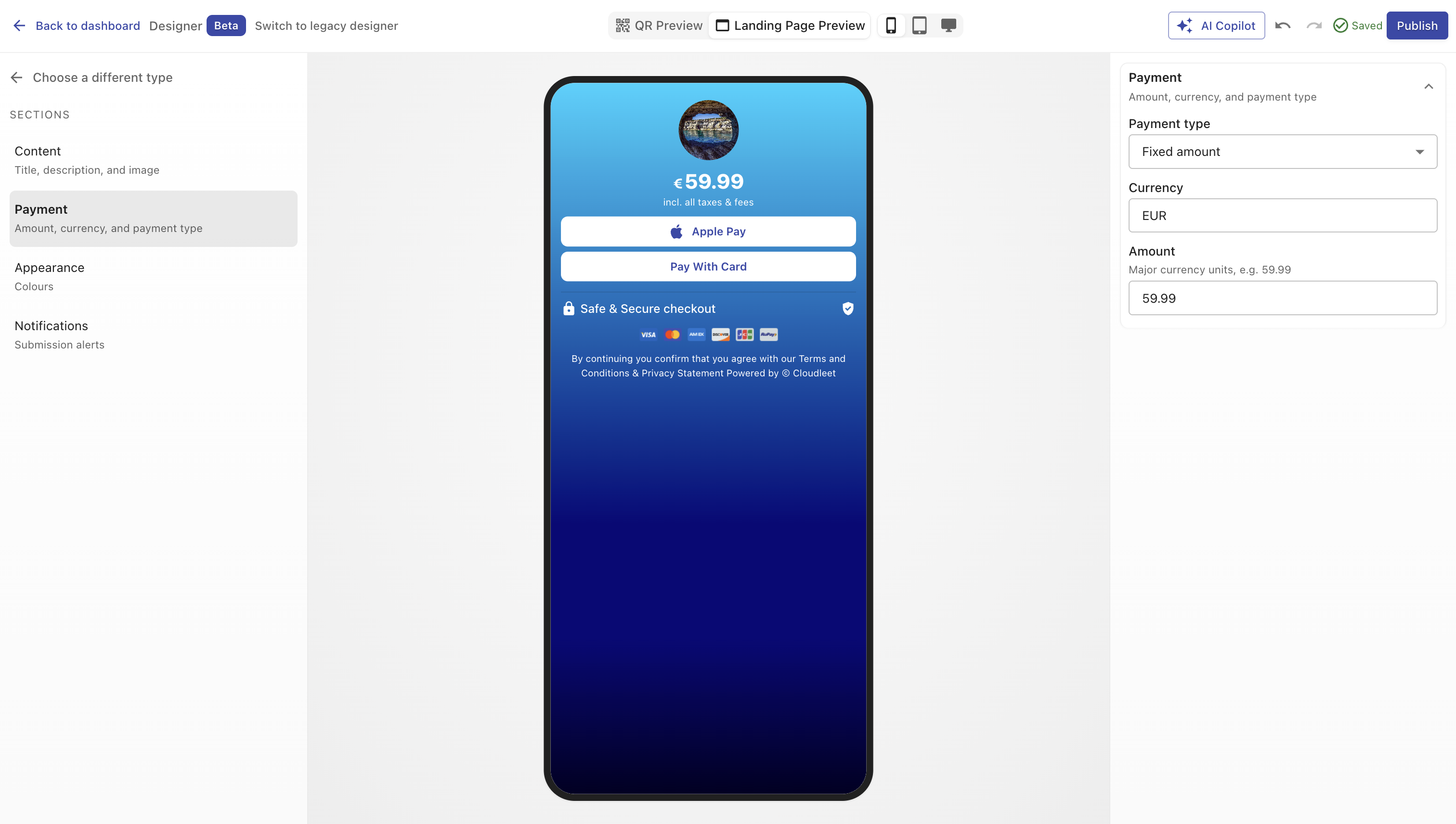
Overview
A Payment Page enables visitors to pay through a simple, branded interface.
You can define a fixed amount, provide predefined choices, or let QRCompose automatically populate the amount from another page (like a menu or booking form).
Payments are processed securely through Stripe, and all transactions are logged with detailed analytics.
Creating a Payment Page
- Open Designer → Create a design (
/designer) - Select Payment from the type picker (Business group)
- Configure amount, Stripe connection, and design
- Publish — requires Advanced plan or higher
You can also connect payment pages in an App (e.g., Menu → Payment → Review).
Configuration Sections
Main Properties
Basic setup for your payment page.
| Field | Description |
|---|---|
| Title | Internal name and visible page heading. (Required) |
| Description | Optional subtitle or instructions below the title. |
Design
Customize your payment page visually.
| Option | Description |
|---|---|
| Color Presets | Quickly apply a theme for background and text. |
| Background Color | Solid or gradient background color. |
| Text Color | Adjusts all text and button labels for contrast. |
| Image / Logo | Upload a logo or header image shown at the top. |
Payment Settings
This is the core of the Payment configuration. You can define how the payment amount is calculated and presented.
Payment Type
Choose one of three payment types:
- Fixed – Set a single, unchangeable amount.
- Predefined – Offer a list of selectable amounts.
- Context – Automatically use an amount calculated from previous steps (e.g. a shopping cart or booking form total).
WARNING
Once a payment page has been published, you cannot change its payment type later - doing so could invalidate existing analytics or submissions.
Currency
Select the currency used for payments.
All major currencies are supported (EUR, USD, GBP, etc.).
When the type is Context, the currency is automatically inherited from the preceding component in the App (e.g., Menu or Booking).
Fixed Amount
If Fixed is selected, you can specify a single numeric amount (e.g., 25.00).
Predefined Amounts
If Predefined is selected, define multiple preset values:
- Enter one amount per field.
- Click Add Amount to include more options. Visitors will choose one when paying.
Contextual Amount
If Context is selected:
- The total is automatically calculated from the linked page (Menu or Booking).
- Visitors see the exact amount from their cart or booking details.
- Currency and totals are synced automatically.
Payment Method
Currently, QRCompose supports fiat payments via Stripe.
A toggle for crypto payments is visible but disabled until future releases.
Example Use Cases
- Donations: Create a QR for events or fundraising with predefined amounts (€5, €10, €20).
- Restaurants: Combine with Menus and Apps to accept orders and payments seamlessly.
- Events: Collect ticket fees or entry charges.
- Retail / Freelancers: Create quick payment links for services, invoices, or on-the-spot sales.
Analytics
Every transaction and interaction is tracked:
- Page visits and payment attempts
- Conversion rates
- Payment amounts and currencies
- Device and location of each transaction
You can view detailed analytics for each Payment page in your dashboard.
Integrations
Payments are processed securely through Stripe, ensuring PCI compliance and fast settlements.
You can connect your Stripe account during onboarding or under your account settings.
Future updates will introduce:
- Crypto payments
- Custom Webhooks
- Transaction exports
Best Practices
- Clearly state the purpose of the payment in the description.
- Use currency symbols and decimals for clarity.
- Avoid unnecessary reprints - update amounts directly in the dashboard when needed.
- Test your page in both desktop and mobile modes before publishing.
- When using contextual payments, double-check your connected App setup.
Summary
The Payments component lets you collect money effortlessly - whether for food orders, services, or donations - through a beautifully branded, secure, and dynamic QR-powered page.
It’s one of the most powerful elements in QRCompose, designed to work seamlessly with other components for complete end-to-end experiences.