Getting Started
Welcome to QRCompose! This guide walks you through creating your first interactive QR experience using Designer V3.
Sign Up & Log In
Creating Your Account
- Visit app.qrcompose.com
- Click Sign Up
- Enter your email and password (or use Google sign-in)
- Verify your email address
- Your account is created on the permanent Free plan
Free forever
New accounts start on Free — no automatic trial expiry. You can upgrade anytime or start a 7-day Advanced preview from subscription settings.
Logging In
Log in at app.qrcompose.com.
Understanding QR Code Types
Static QR Codes
- Point to a fixed URL that never changes
- Cannot be edited after creation
- No analytics tracking
- Best for: One-time use, permanent displays
Dynamic QR Codes (Recommended)
- Point to a flexible URL managed by QRCompose
- Can be updated anytime without reprinting
- Full analytics and tracking enabled
- Best for: Businesses, events, marketing campaigns
Your First Project
Let's create a Link Tree as your first project.
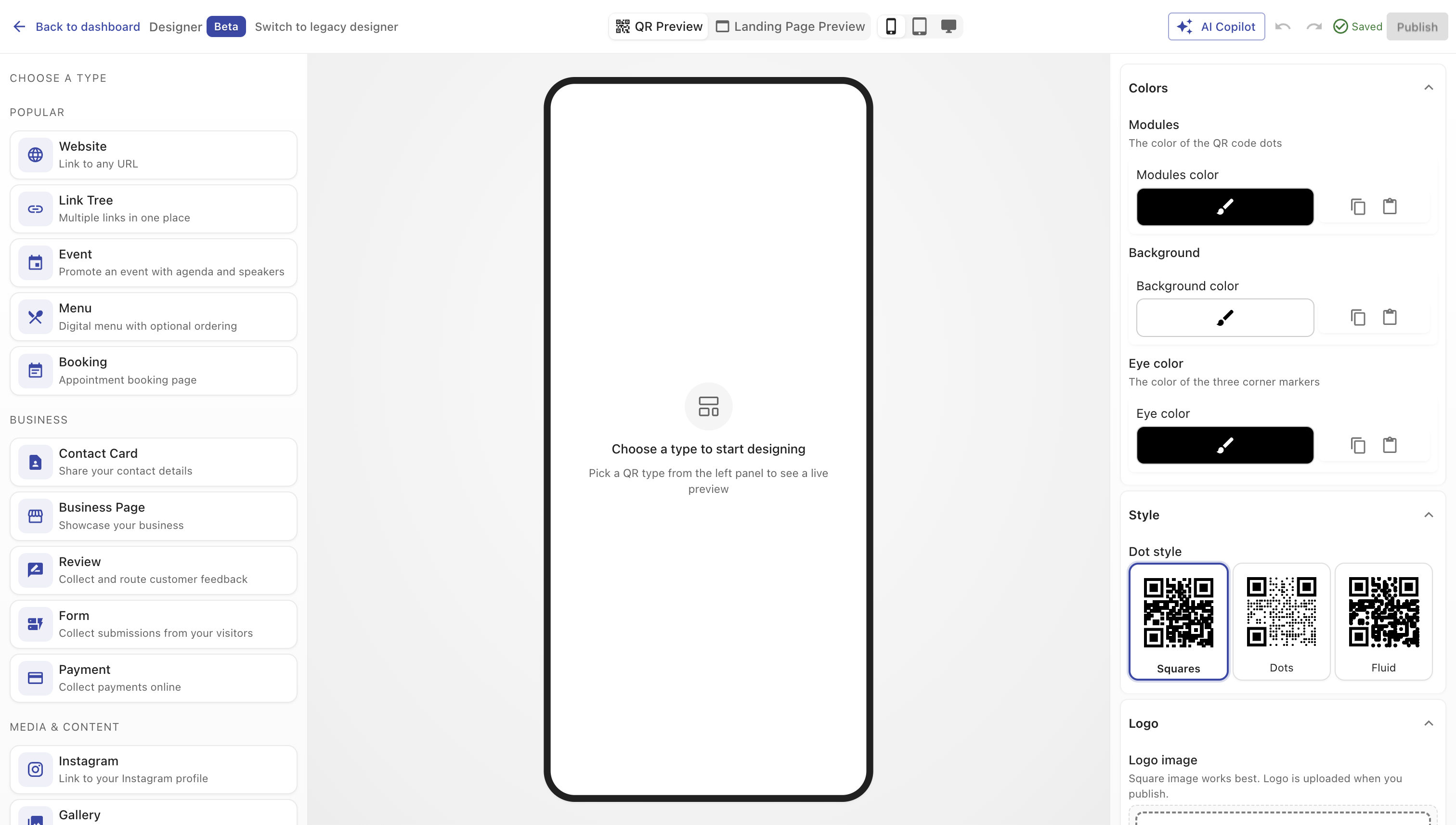
Step 1: Open the Designer
- From the sidebar, click Designer → Create a design (
/designer) - In the type picker, select Link Tree (Popular group)
- The Designer V3 workspace opens with the canvas preview
Step 2: Add Your Links
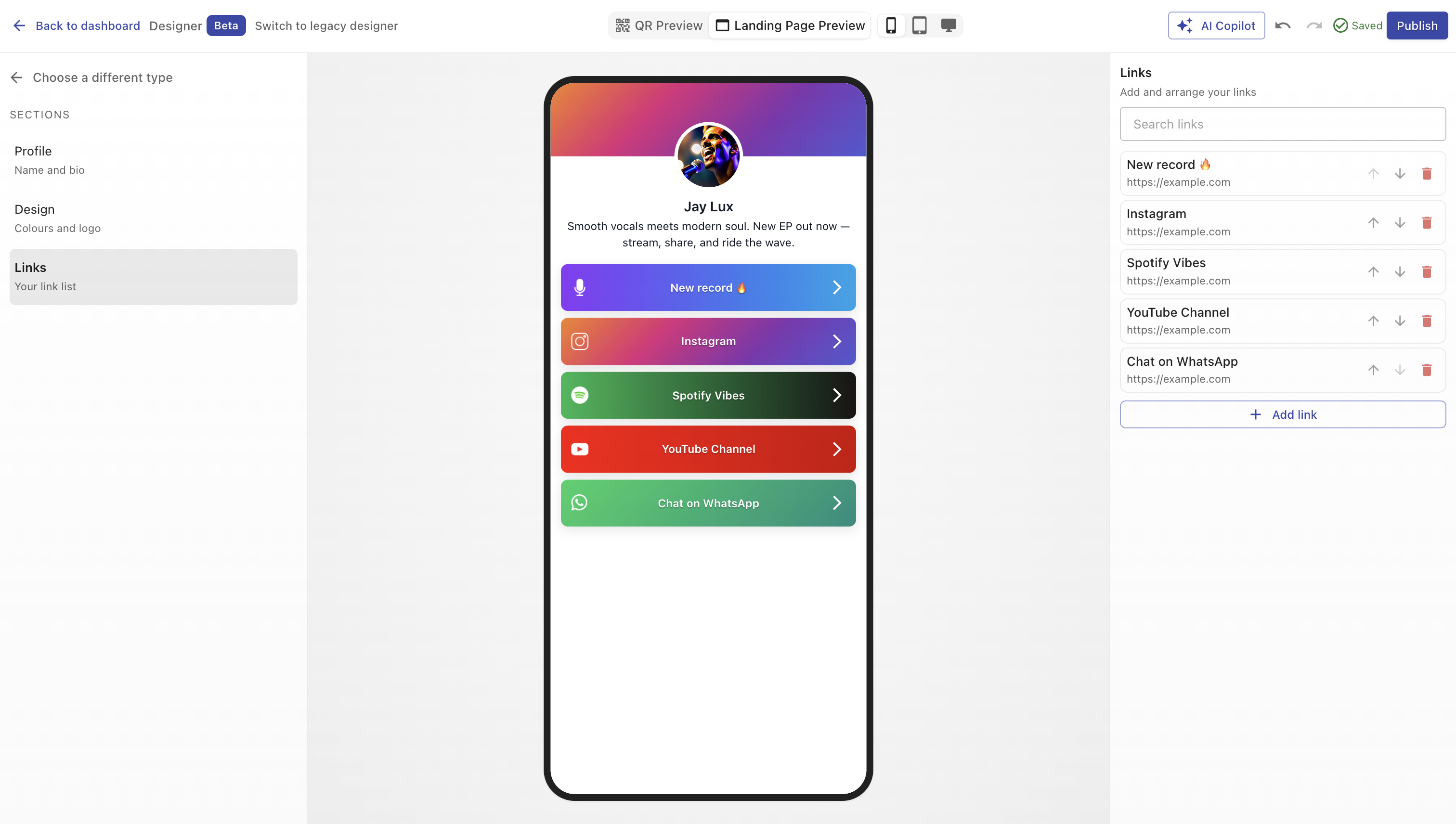
In the left panel, open the Content section:
- Click to add a link
- Enter:
- Label — e.g., "Instagram"
- URL — your Instagram profile URL
- Icon — choose from the icon library (optional)
- Repeat for additional links
- Drag to reorder links in the inspector
Step 3: Customise Appearance
- Navigate to Branding or Design sections in the left panel
- Customise:
- Background colour or image
- Button style
- Typography
- Logo or profile image
- Use the device preview toggles (phone, tablet, desktop) to check layouts
Step 4: Configure Your QR Code
- Switch the canvas preview to QR mode using the toolbar
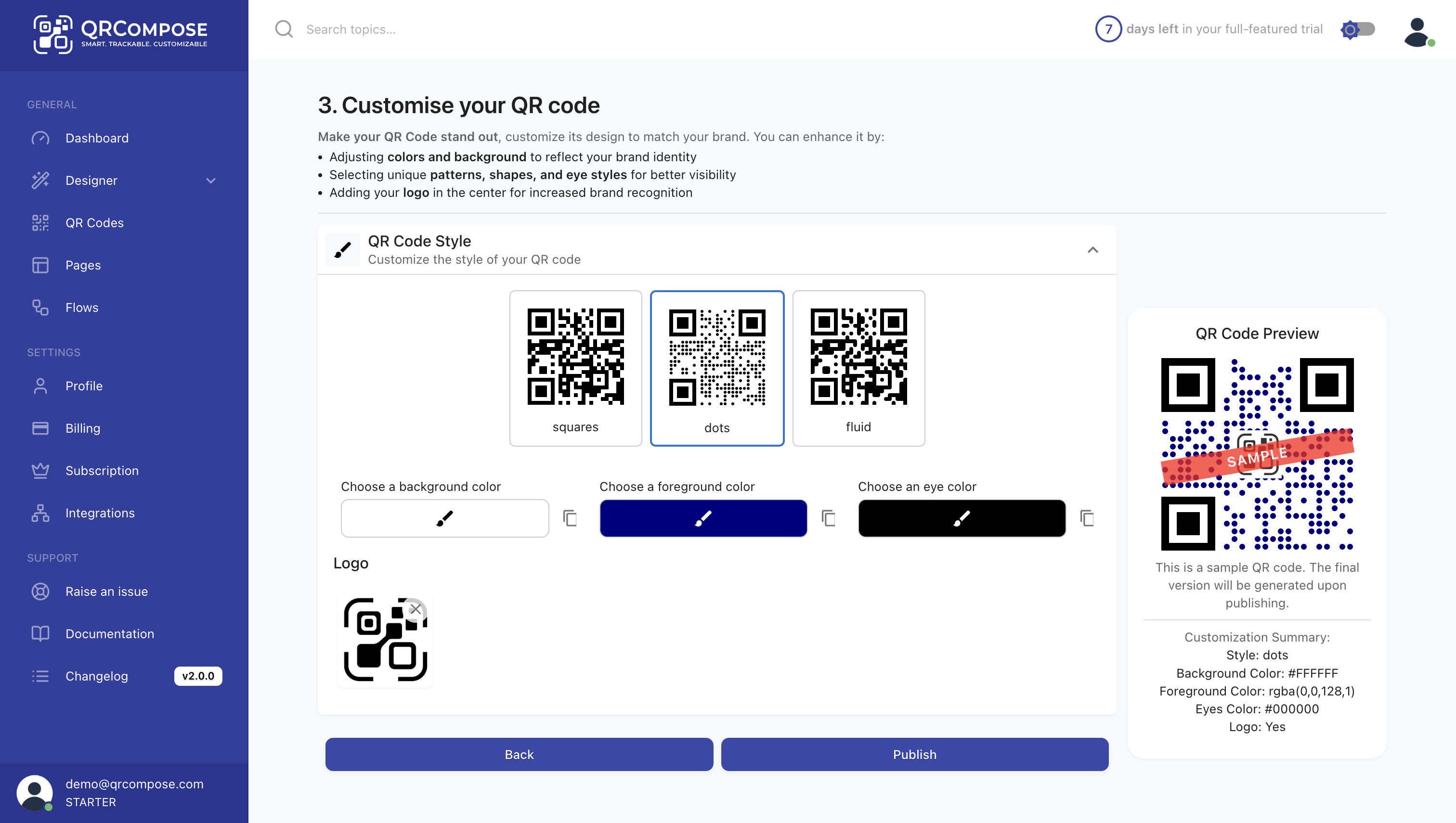
- Customise QR appearance:
- Colour — match your brand
- Shape — dots, squares, or rounded
- Logo — upload a centre logo (optional)
- Frame — add a call-to-action frame
QR scannability
Keep high contrast between your QR code and background. Test on multiple devices before printing.
Step 5: Publish
- Click Publish in the toolbar
- Choose to create a QR code, a page, or both
- Your experience is live
On the Free plan you can publish one app at a time. Pages and forms publish without restriction.
Download Your QR Code
Go to QR Codes (/qr-code/view), hover over your QR code, and click the download icon.
What Next?
- Designer V3 — full workspace guide
- Plans & Billing — upgrade when you need more
- Apps — connect multiple pages
- AI Copilot — get AI help while designing
Testing Your QR Code
Before printing or sharing widely:
- Test on multiple devices — iOS, Android, different scanner apps
- Check load speed — should load in under 2 seconds
- Verify links — click every link
- Test responsiveness — different screen sizes
- Check analytics — confirm tracking works
Testing
Use your phone's camera app to scan. Most modern smartphones have built-in QR scanning.