Apps
Apps let you connect multiple QRCompose pages into guided, multi-step experiences — such as menu → order → payment → review, or event → booking → payment → confirmation. Apps were formerly called Flows; the product UI now uses Apps throughout.
Access apps from the sidebar: Apps (/apps/view). Build new apps with Designer → Create an app or Apps → App Builder (/apps/builder).
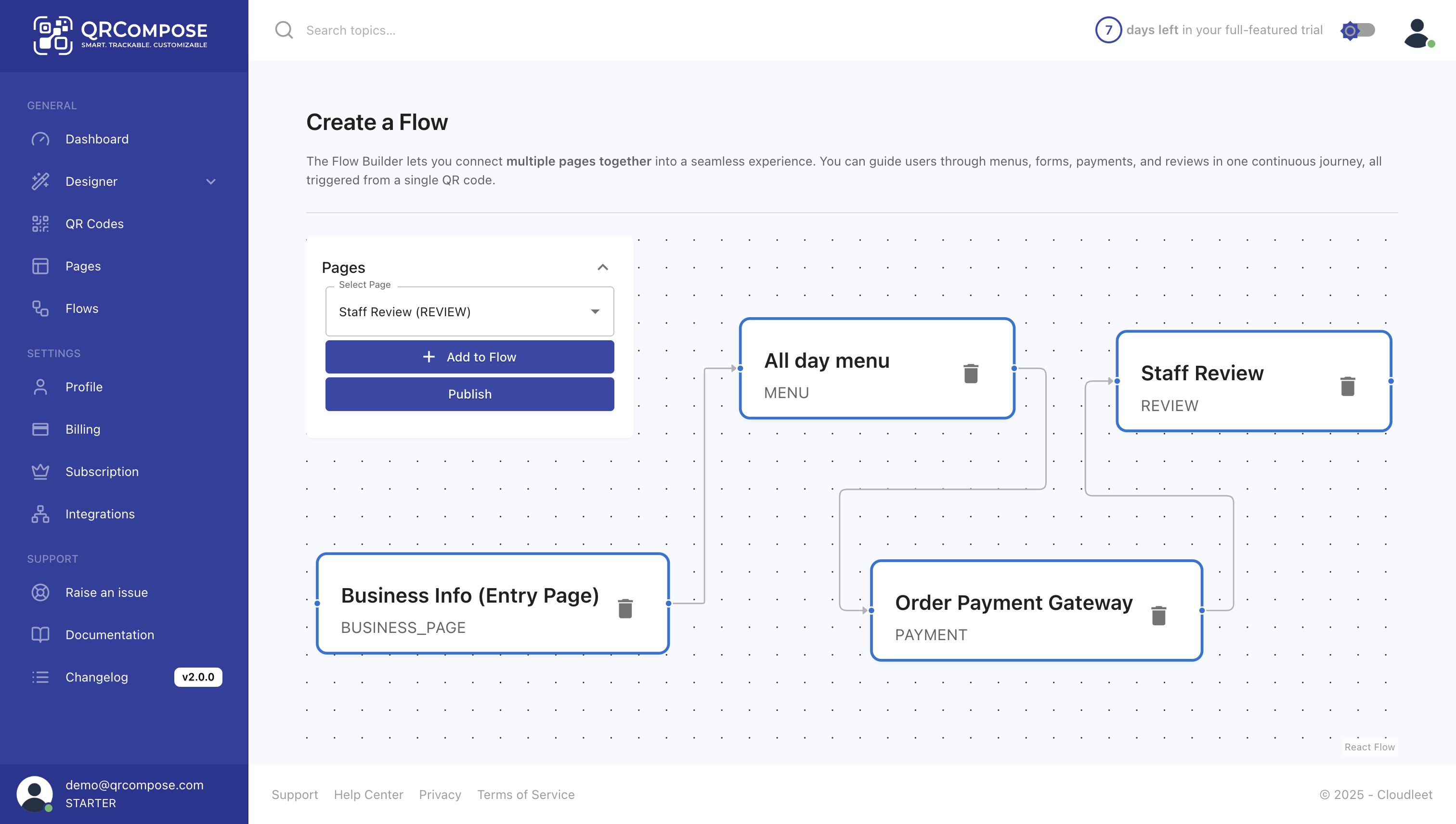
What is an app?
An app is a logical sequence of published pages that users navigate by interacting with QRCompose components. Each page can pass data to the next — orders, form submissions, booking details — enabling seamless transactional journeys.
Example apps
Restaurant ordering
Menu (orders enabled) → Payment (dynamic) → ReviewBooking
Event page → Booking form → Payment (dynamic) → ConfirmationLead capture
Link Tree → Form → Thank-you pageHow apps work
- Each node in the app represents a published page
- Connections define which page the user visits next after completing an interaction
- Data from one page (shopping cart, booking details) passes to the next, enabling contextual logic such as dynamic pricing
- You can mix page types — a gallery before a form, or a link tree branching into multiple destinations
Apps are built visually in the App Builder, where you drag pages, connect them, and validate compatibility automatically.
App validation rules
QRCompose validates connections between pages to prevent data conflicts.
Disallowed direct connections
| Rule | Reason |
|---|---|
| Payment → Payment | Each payment step must be isolated |
| Menu → Menu | Only one orderable menu per app |
| Review → non-Payment | Reviews should follow a payment step |
Payment page restrictions
When a Payment page is the target connection, QRCompose checks the source page configuration.
Contextual payments
If a payment page uses contextual (dynamic) pricing, it expects data (order total or booking price) from the previous page.
Allowed sources:
- Menu pages with ordering enabled
- Form/Booking pages with a booking field and price per slot > 0
Disallowed sources: Link Tree, Gallery, Business Card, and other non-context pages.
Menu → Payment
| Condition | Allowed? |
|---|---|
| Menu allows orders and Payment is contextual | Yes |
| Menu allows orders but Payment is fixed | No |
| Menu without orders and Payment is contextual | No |
Form → Payment
| Condition | Allowed? |
|---|---|
| Booking field with price > 0 and Payment is contextual | Yes |
| Booking field with price > 0 but Payment is fixed | No |
| No booking field or price = 0 | No |
Review page restrictions
Reviews can connect to payments only if they do not redirect externally. If any review option includes an external link, the connection is blocked and the app ends at the review step.
Supported data passing
| From | To | Data passed |
|---|---|---|
| Menu | Payment (context) | Order total, items, quantities |
| Form (booking) | Payment (context) | Slot, time, date, participants, price |
| Payment | Review | Transaction metadata |
Tips for stable apps
- Publish each page before adding it to an app
- Avoid circular references (page A → page B → page A)
- Use contextual payments only when the source page produces numeric values
- Keep one payment per app
- Test end-to-end before deploying QR codes publicly
Draft vs published apps
You can save unlimited draft apps on any plan. Publishing an app makes it live and counts toward your plan's published app limit. See Publish & Draft.
Page Library
Apps draw pages from your Page Library (/page/view). Pages must be published before they can be added to an app. See Page Library.
Analytics
Each app has its own insights view:
- Apps → [your app] → Insights — conversion funnel, step completion, drop-off
- Apps → [your app] → Sessions — individual user session traces
See Analytics for dashboard-level reporting.
Related
- Page Library — where pages are stored
- Publish & Draft — app publish limits
- Booking System — booking-specific configuration
- Conditional Redirects — QR-level routing rules