Video
The Video component lets you upload or link video files directly into your QRCompose pages.
Perfect for showcasing product demos, promotional clips, tutorials, or event highlights, the video player works seamlessly across all devices and can include a call-to-action button for user redirection.
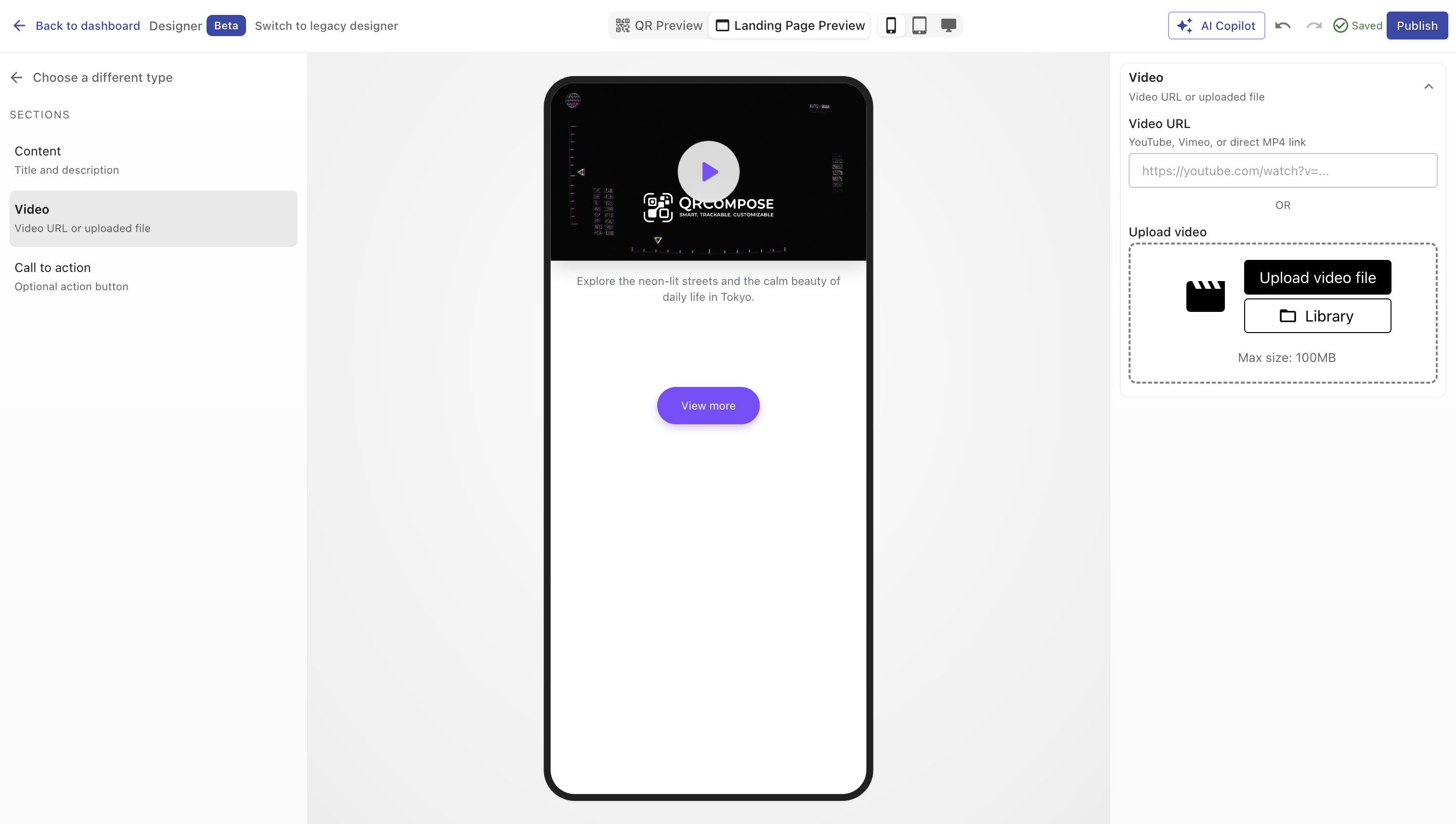
Overview
A Video Page allows visitors to play your uploaded or externally hosted videos directly from the QR page.
You can upload a video, link an existing file, add a title and description, and include a button that redirects users to a relevant URL (such as your website, product page, or registration form).
Creating a Video Page
You can create a video page in two ways:
- During QR code creation - select Page → Video in Step 2.
- From the Page Library - select type Video in Designer V3, upload or link your video, and publish.
Once created, your video page can be attached to a QR code or added as a step in an App (e.g. Landing → Video → Form → Review).
Configuration Sections
Main Properties
Define your video’s key details.
| Field | Description |
|---|---|
| Title | Name of the video displayed at the top of the page. (Required) |
| Description | Short summary or context about the video. |
| Existing Video File URL | Add a public video file link (e.g. hosted on AWS or another CDN). |
| Video Upload | Upload your own MP4, MOV, or WebM file directly to QRCompose. |
TIP
You can either provide a hosted video URL or upload a file.
Uploaded files are stored securely on QRCompose’s CDN for optimized playback.
Call-to-Action Button
Optionally display a button below the video player.
| Field | Description |
|---|---|
| Show Button | Toggle to display or hide the CTA button. |
| Label | Text displayed on the button (e.g. “Learn More” or “Visit Website”). |
| Redirect Link | Destination URL the button leads to. |
WARNING
If this page is part of an App and the CTA redirects users to an external site,
the app will stop there. For smoother user journeys, use internal links when possible.
Analytics
QRCompose automatically tracks key engagement metrics:
- Total plays and unique visitors
- Average watch time
- Pause and replay events
- CTA click-through rate
- Device type and location data
Best Practices
- Upload videos in MP4 (H.264) or WebM format for maximum compatibility.
- Keep file sizes under 50 MB for faster load times.
- Use short, impactful clips (under 90 seconds recommended).
- Optimize resolution for mobile (720p or 1080p).
- Avoid autoplay for large files - let users control playback.
- Add subtitles or captions if necessary for accessibility.
Example Use Cases
| Use Case | Description |
|---|---|
| Product Demos | Highlight product features or tutorials. |
| Real Estate | Share virtual tours or property walkthroughs. |
| Events | Play promotional clips or event highlights. |
| Restaurants & Hotels | Showcase ambiance or signature experiences. |
| Educational Content | Share mini lessons, guides, or course previews. |
Summary
The Video component transforms your QR codes into engaging, motion-rich experiences.
Upload or link a video, add descriptive details, and direct your audience to take action - all within one page.