Link Tree
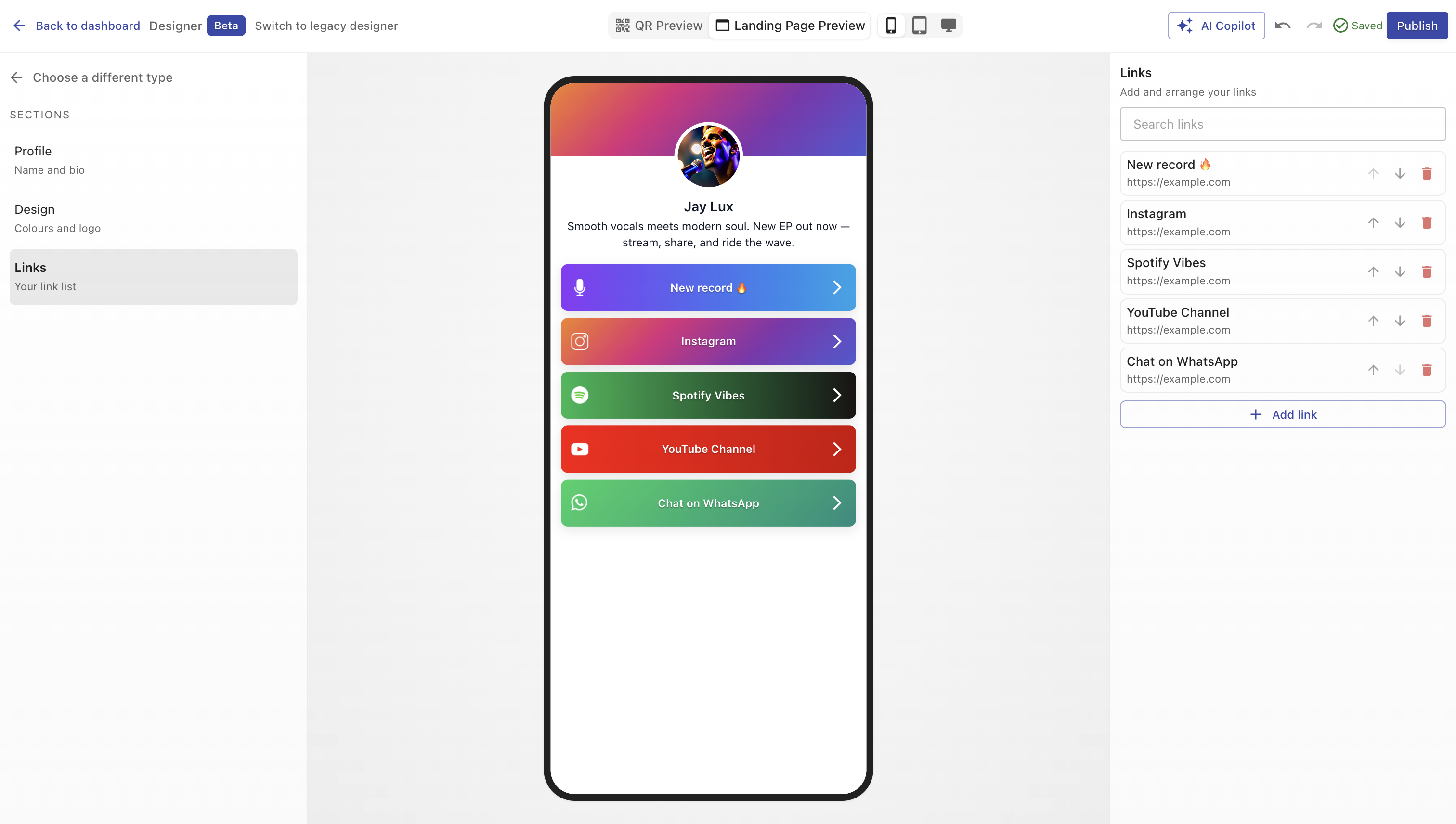
The Link Tree component in QRCompose allows you to build a mobile-optimized landing page with multiple clickable links, each customizable with its own label, color, and icon.
It’s perfect for social media bios, personal portfolios, product collections, or quick-access directories - all trackable with detailed analytics.
Overview
A Link Tree Page lets you group all your important links in one place.
Visitors scan your QR code or open your short link to see a neatly designed list of buttons leading to your destinations - websites, social profiles, stores, or files.
You can:
- Add unlimited links with titles, URLs, and icons
- Reorder them easily
- Apply unique background and text colors per link
- Upload your logo or profile image
- Style the page to match your brand
Creating a Link Tree
You can create a Link Tree in two ways:
- From Designer V3:
Open Designer → Create a design (/designer), select Link Tree as the component. - From the Page Library:
Open the page in Designer V3 or create via Designer with type Link Tree, configure your content, and publish it.
Once saved, the page can be linked to any QR code (or multiple QRs).
Configuration
When editing a Link Tree, the configurator includes several sections:
Main Properties
Define the essentials:
- Name – internal title for your reference
- Description – optional short intro or tagline displayed at the top of the page
Design
Customize your theme:
- Color Presets – apply pre-defined palettes
- Header Color, Background Color, Text Color – choose solid or gradient combinations
- Logo / Image – upload a profile photo or brand logo
List of Links
Add as many link items as you need. For each link, you can configure:
- Label – the text shown on the button
- URL – where it points (supports any website, app, or deep link)
- Icon / Image – optional small image or logo per link
- Background Color – for the button
- Text Color – for the label
You can:
- Reorder links using the up/down arrows
- Delete links (with confirmation if they already have analytics data)
- Add New Links anytime
All edits are saved instantly in the background, and analytics remain attached to each link’s unique ID.
Styling Tips
- Use consistent colors to align with your brand identity.
- Keep link labels short and action-oriented (e.g. “Shop Now”, “Book a Table”).
- Upload a small square image for best icon results (around 128×128px).
- Apply gradients for modern aesthetics but maintain good contrast for readability.
Publishing
When ready:
- Click Publish to generate your page’s public URL.
- Link it to a new or existing QR code.
- Download your QR in PNG, SVG, or PDF for print or digital use.
Changes are live instantly - no need to reprint existing codes.
Analytics
Every button click within your Link Tree is tracked in real-time, giving you visibility into:
- Total and unique clicks per link
- Time and location of interactions
- Device type and platform
- Conversion funnel (if used within an App)
You can view analytics in your dashboard or filter by date range and specific QR.
Example Use Cases
- Creators: Share all your platforms from a single QR on your social bios.
- Restaurants: Link to menu, bookings, and reviews in one place.
- Businesses: Aggregate services, contact options, and payment links.
- Events: Provide quick links to schedule, registration, and location.
Best Practices
- Keep fewer than 10 links for best mobile experience.
- Use icons to improve visual scanning.
- Test all links after publishing.
- Avoid long URLs - use short domains or branded redirects if possible.
Summary
The Link Tree is a fast, versatile way to create a centralized hub for your online presence.
With full design control, analytics tracking, and dynamic QR linkage, it’s one of the most effective components for creators, brands, and businesses alike.