Page Library
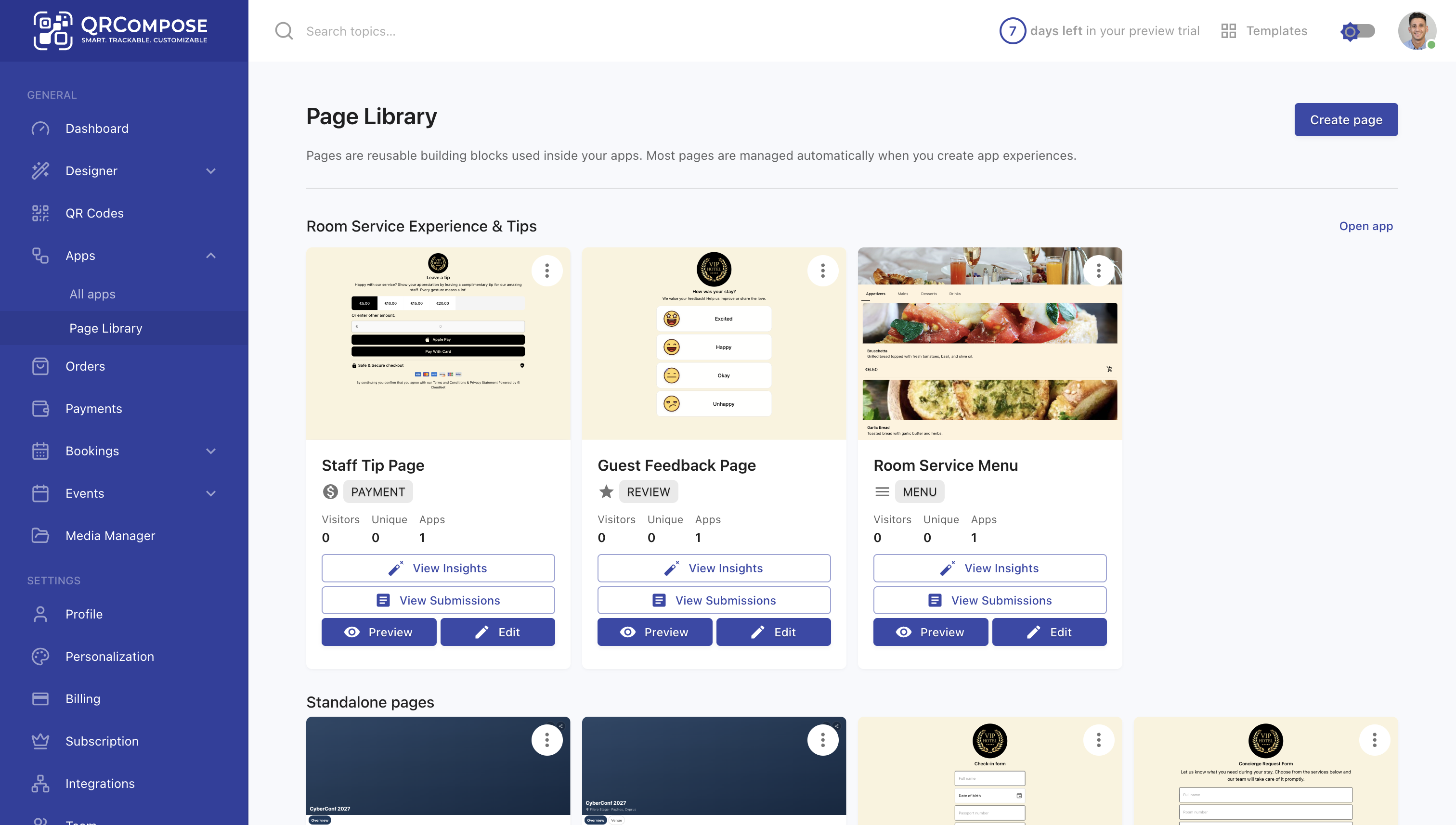
The Page Library is where you manage standalone pages created in the designer. Access it from the sidebar under Apps → Page Library (/page/view).
Pages vs apps vs QR codes
| Asset | What it is | Where to manage |
|---|---|---|
| Page | A single interactive experience (menu, form, link tree, etc.) | Page Library |
| App | Multiple pages connected in sequence | Apps (/apps/view) |
| QR code | A scannable entry point that links to a page, app, or URL | QR Codes (/qr-code/view) |
A page can exist on its own (linked directly to a QR code) or as a step inside an app.
Creating pages
Create pages in two ways:
- Designer — Designer → Create a design, configure, and publish as a page
- Page Library — view existing pages and open them for editing
Published pages appear in the library with their type, status, and linked QR codes.
Editing and republishing
- Open a page from the Page Library
- Click to edit — this opens the designer with the page configuration loaded
- Save changes — updates go live immediately for published pages
Dynamic updates
Edits to a published page reflect instantly on all linked QR codes and app steps. No reprinting required.
Page insights and submissions
From the Page Library you can access:
- Insights (
/page/:id/insights) — visits, geography, devices, conversions - Submissions (
/page/:id/submissions) — form responses, orders, bookings collected by the page
Using pages in apps
When building an app in the App Builder, you select published pages from your library as steps. Pages must be published before they can be added to an app.
Related
- Pages & Components — available page types
- Apps — connecting pages into multi-step experiences
- Designer V3 — where pages are created
- Submissions — viewing collected data