PDFs
The PDF component in QRCompose allows you to display documents directly inside a hosted, mobile-friendly viewer.
Whether you want to share menus, brochures, product catalogs, or manuals, this component makes it easy to upload or link a PDF and generate a QR code instantly.
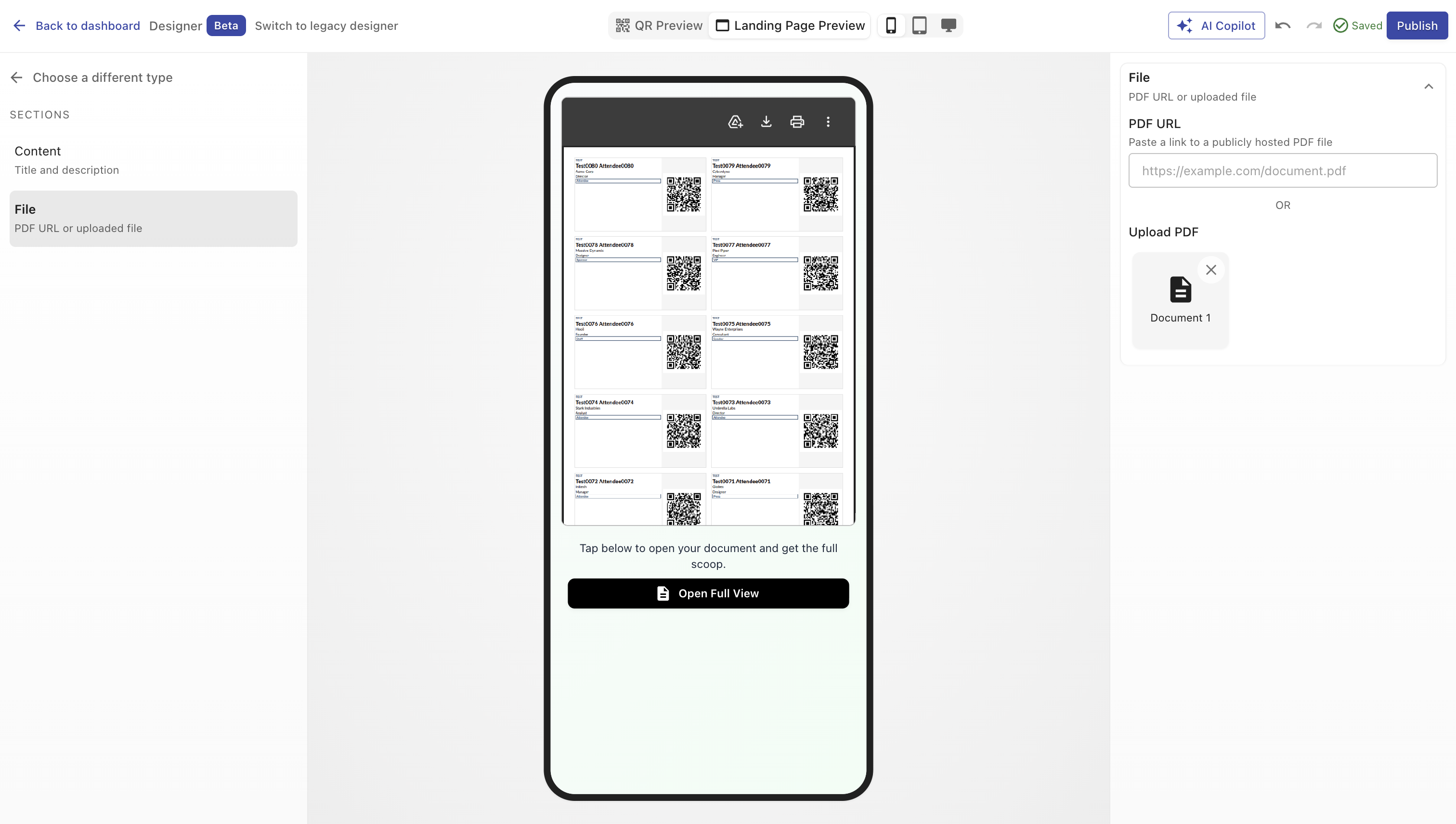
Overview
A PDF Page lets users open and read a document directly in their browser - without downloading apps or external viewers.
You can upload a file to QRCompose or link to an external PDF hosted elsewhere.
Each document page includes:
- Title and description
- A built-in PDF viewer
- Optional external file URL
- Analytics tracking for views
Creating a PDF Page
You can create a PDF page in two ways:
- During QR creation - select Page → PDF in Step 2.
- From the Page Library - select type PDF in Designer V3, upload your file or add a link, then publish.
Once saved, the page can be linked to a QR code for direct scanning and access.
Configuration Sections
Main Properties
Define the essential details of your document.
| Field | Description |
|---|---|
| Title | Displayed as the document title above the viewer. (Required) |
| Description | Short summary or introduction displayed below the title. |
| Existing PDF URL | Use this if your document is hosted externally (e.g., Dropbox, AWS S3, Google Drive). |
| PDF File Upload | Alternatively, upload your PDF directly to QRCompose - it will be securely hosted and served via a high-performance CDN. |
TIP
You can use either a hosted URL or upload a file - not both.
If you upload a new file, it automatically replaces any linked URL.
File Hosting Notes
Uploaded files are stored on AWS S3 for fast delivery worldwide.
For security and performance reasons:
- Only non-sensitive content should be uploaded.
- Files are served through publicly accessible URLs (so that viewers can open them).
- Sensitive internal documents should be linked privately via password-protected URLs.
Design & Layout
PDF pages use a simple, reader-first layout optimized for both desktop and mobile.
You can still customize the color theme through the Base Configurator to align the page with your brand.
Analytics
Every document view is tracked automatically, including:
- Page views and unique visitors
- Device and location data
- Referral source (where the scan came from)
Example Use Cases
- Restaurants: Digital menus or wine lists.
- Real Estate: Property brochures and floorplans.
- Retail / Product Catalogs: Showcase collections without printing.
- Events: Share event schedules or exhibitor lists.
- Corporate: Display reports, manuals, or company policies.
Best Practices
- Use descriptive titles so visitors know what the file contains.
- Keep PDFs under 10MB for faster loading.
- Use A4 vertical orientation for best compatibility on mobile devices.
- If possible, export your file with embedded fonts for proper rendering.
- Always test the uploaded document on multiple devices.
Summary
The PDF component is a simple but powerful way to deliver printable or viewable content through QR codes.
It’s fast, accessible, and analytics-enabled - turning static documents into dynamic, trackable digital experiences.