Events
The Events page type lets you create branded event landing pages with dates, location, agenda, speakers, and call-to-action buttons — all accessible via QR code.
For full event operations (attendees, registration desk, licensing, guest portal), see Event Management.
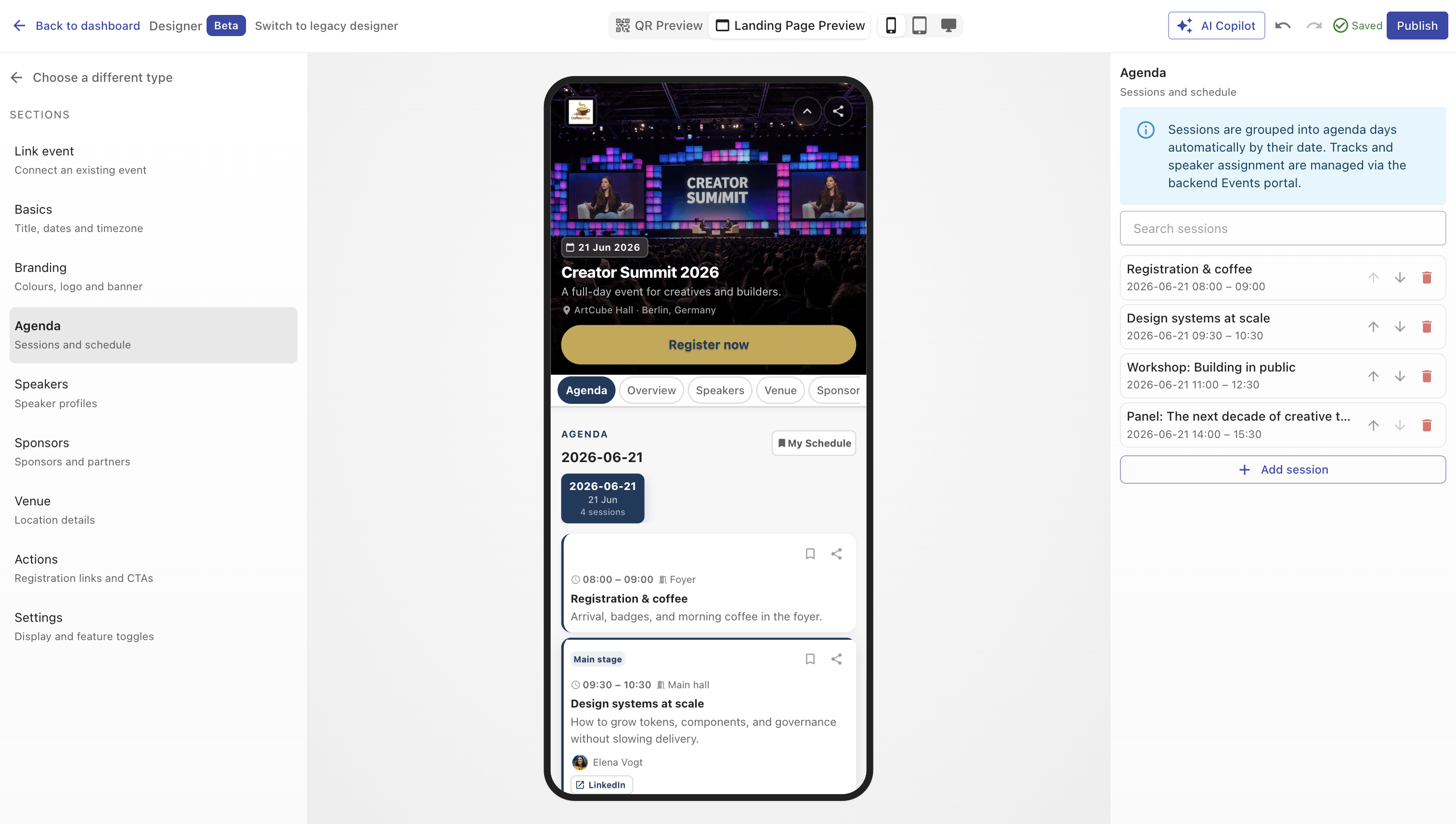
Overview
An event page shares event details in one mobile-first layout. Visitors scan the QR code to view dates, location, agenda, and speakers, and can click a call-to-action button to register or get directions.
This page type is the public face of your event. The organiser workspace (Event Management) handles attendees, check-in, and licensing behind the scenes.
Creating an event page
- Open Designer → Create a design (
/designer) - Select Event from the type picker (Popular group)
- Configure sections: Basics, Branding, Agenda, Speakers, Sponsors, Venue, Actions, Settings
- Publish — note that publishing the full event requires an event licence
You can also edit existing event pages from the Page Library.
Configuration sections
Basics
| Field | Description |
|---|---|
| Name | Event title (required) |
| Description | Event summary |
| Date From / Date To | Start and end dates |
| Time From / Time To | Start and end times |
| Location Name | Venue name |
| Location Address | Physical address |
| Location Map Link | Google Maps or similar |
Branding and design
- Colour presets, background, text colours
- Banner or hero image (16:9 ratio recommended)
- Logo and event branding
Agenda, speakers, and sponsors
Configure programme content that appears on the public page and in the guest portal agenda:
- Agenda — session schedule
- Speakers — speaker profiles
- Sponsors — sponsor logos and links
- Venue — room and location details
Call-to-action button
| Field | Description |
|---|---|
| Show Button | Toggle CTA visibility |
| Label | e.g., "Register Now", "Get Directions" |
| Redirect Link | Target URL |
External CTAs in apps
If this event page is a step in an app and the CTA points to an external URL, the app ends at that point.
Analytics
Track page views, geography, devices, and CTA clicks from Page Library → Insights.
Example use cases
- Conference or workshop promotion
- Concert or festival information
- Corporate event details with agenda
- Webinar landing page with registration CTA
Related
- Event Management — attendees, desk, programme
- Event Licensing — publish requirements
- Guest Portal — attendee experience
- Designer V3 — create event pages